
Extension Settings
Configure your softphone extension, download apps, and manage call features for seamless voice communication.
Overview
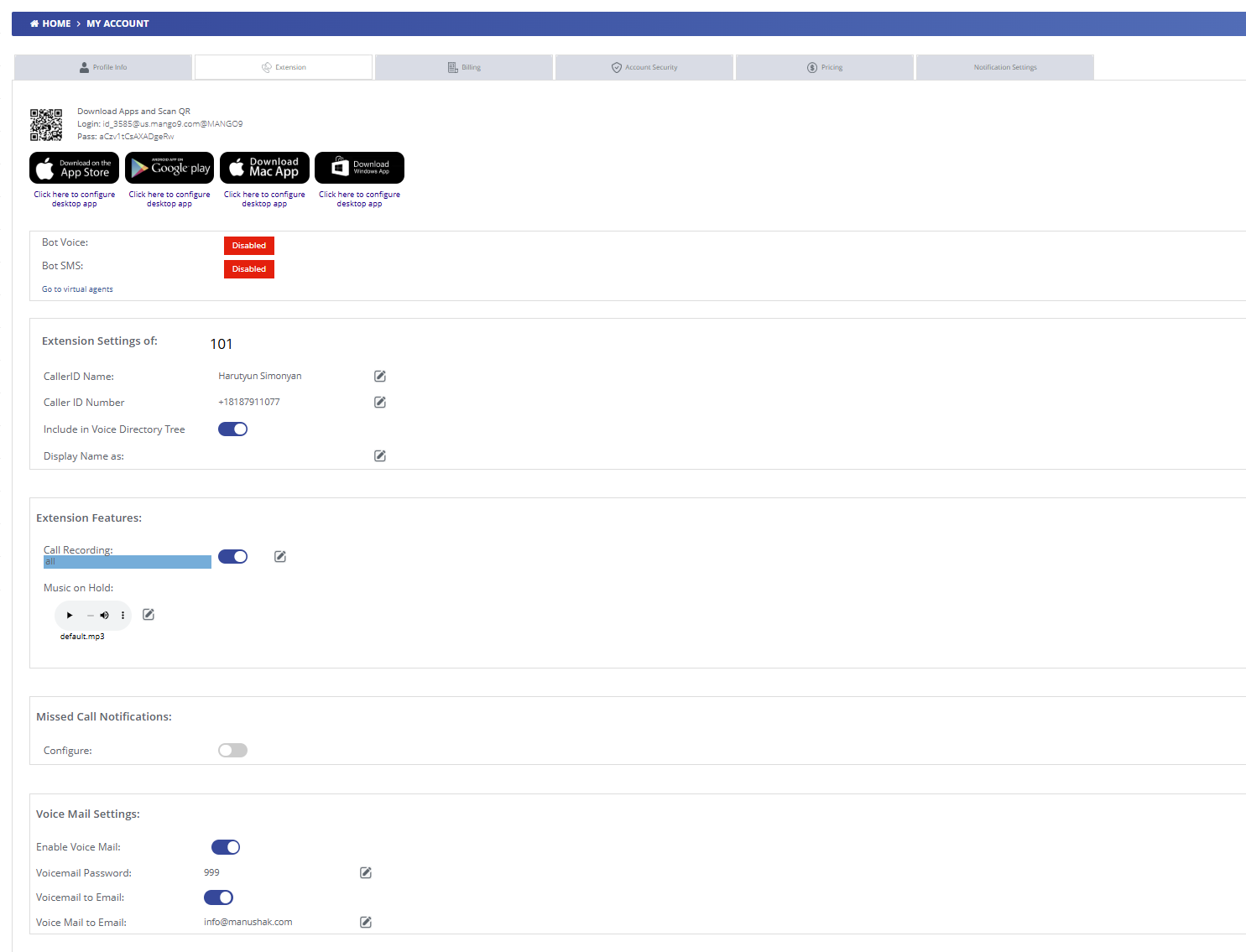
The Extension Settings page is your central hub for configuring your softphone extension. Here you can download the Mango9 softphone apps for various platforms, view your SIP credentials for auto-provisioning, and configure advanced features like call recording, music on hold, voicemail, and missed call notifications. All settings are synchronized with the server in real-time.
Download Mango9 Softphone Apps
QR Code & Credentials
Scan the QR code with your mobile device to quickly configure the Mango9 app, or use the provided credentials for manual configuration:
- Login: Your SIP username (e.g., id_3585@us.mango9.com@MANGO9)
- Password: Auto-generated secure password for softphone authentication
Available Platforms
iOS App Store
Download for iPhone and iPad
Google Play
Download for Android devices
Mac App
Desktop app for macOS
Windows App
Desktop app for Windows PC
Auto-Provisioning & Server Configuration
Mango9 softphone apps support automatic configuration using your extension credentials. Once you log in with your SIP username and password, the app automatically connects to your voice server and provisions all settings:
Extension Configuration
Extension Number
Your unique 3-digit extension number for internal calls and identification (e.g., 101, 102, etc.)
Caller ID Name
Display name shown to recipients when making outbound calls
Caller ID Number
Phone number displayed for outbound calls (must be one of your active numbers)
Voice Directory Tree
Toggle to include your extension in the company's dial-by-name directory
Display Name
Name shown in internal calls and operator panel
Extension Features
Call Recording
Automatically record all inbound and outbound calls for quality assurance, training, and compliance. Recordings are stored securely and accessible through the Recordings page.
Music on Hold
Select audio file played when callers are placed on hold. Upload custom music or choose from the default library.
Missed Call Notifications
Enable missed call notifications to receive instant alerts when calls to your extension go unanswered. Notifications can be configured to:
Voice Mail Settings
Enable Voice Mail
Toggle voicemail on or off for your extension. When enabled, missed calls will be directed to your voicemail box.
Voicemail Password
Set a secure PIN (typically 3-6 digits) required to access your voicemail messages by phone
Voicemail to Email
When enabled, new voicemail messages are automatically sent to your email address as audio attachments
Best Practices
- Keep your softphone credentials secure and never share your SIP password
- Enable call recording for quality assurance and compliance purposes
- Set up voicemail-to-email to never miss important messages
- Choose professional music on hold that represents your brand
- Test your softphone connection after configuring settings