
Generate, play and use videos
Choose a video workflow that fits your source material, then inspect the result before editing.
Choose the right starting point
| Starting material | Workflow |
|---|---|
| Only an idea | Text to video on a model that offers that mode. |
| One picture | Image to video or start-frame guidance. |
| A beginning and ending picture | A model with start and end frame support. |
| A subject image and a motion clip | Motion control on a compatible model. |
| A portrait and speech | Talking-avatar generation. |
| An existing spoken video in another language | Video translation. |
Open Videos → New video. Select the exact model and creation mode before choosing inputs. Option 1 and Option 2 can have different requirements. Read the model-specific guide rather than assuming every model accepts the same files.
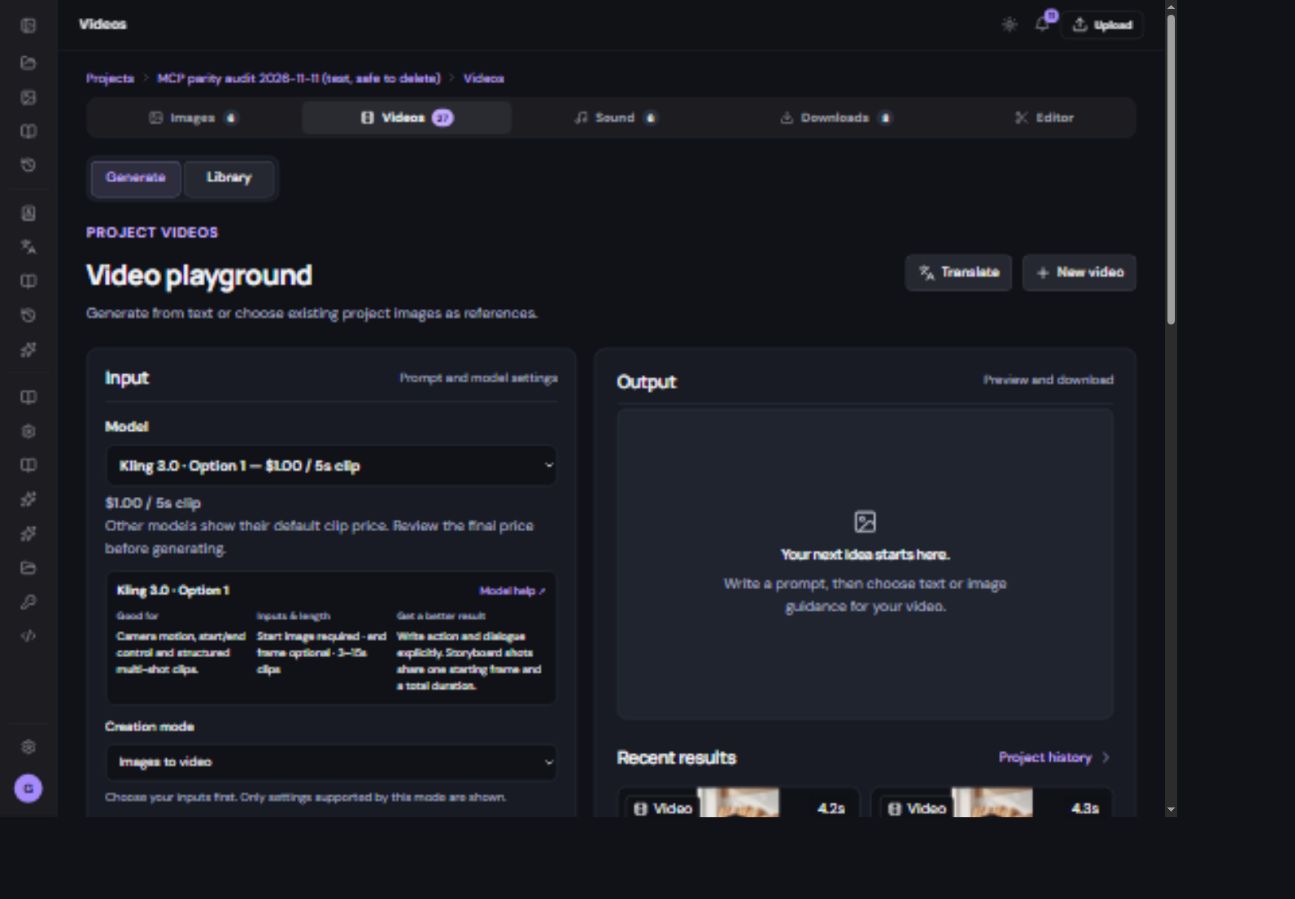
Animate your first image
- Choose a ready image.
Use the start-frame slot or Animate image from the source file’s menu. Check that the thumbnail is the intended picture.
- Describe a small amount of movement.
For example: “Slow camera push in. Soft light moves across the product. Keep its label stable.” A short clip works best with a focused action.
- Add an end frame only when supported and useful.
Choose a compatible composition. Removing one frame keeps the other frame in its own slot.
- Set length, quality and sound.
Use only the options shown for the selected mode. If Generate video audio is offered, enable it when you want generated audio. Always listen to the returned file.
- Review and confirm the quote.
Check input thumbnails and required audio or motion references. Start once, then follow the existing job in history.
Play and compare results
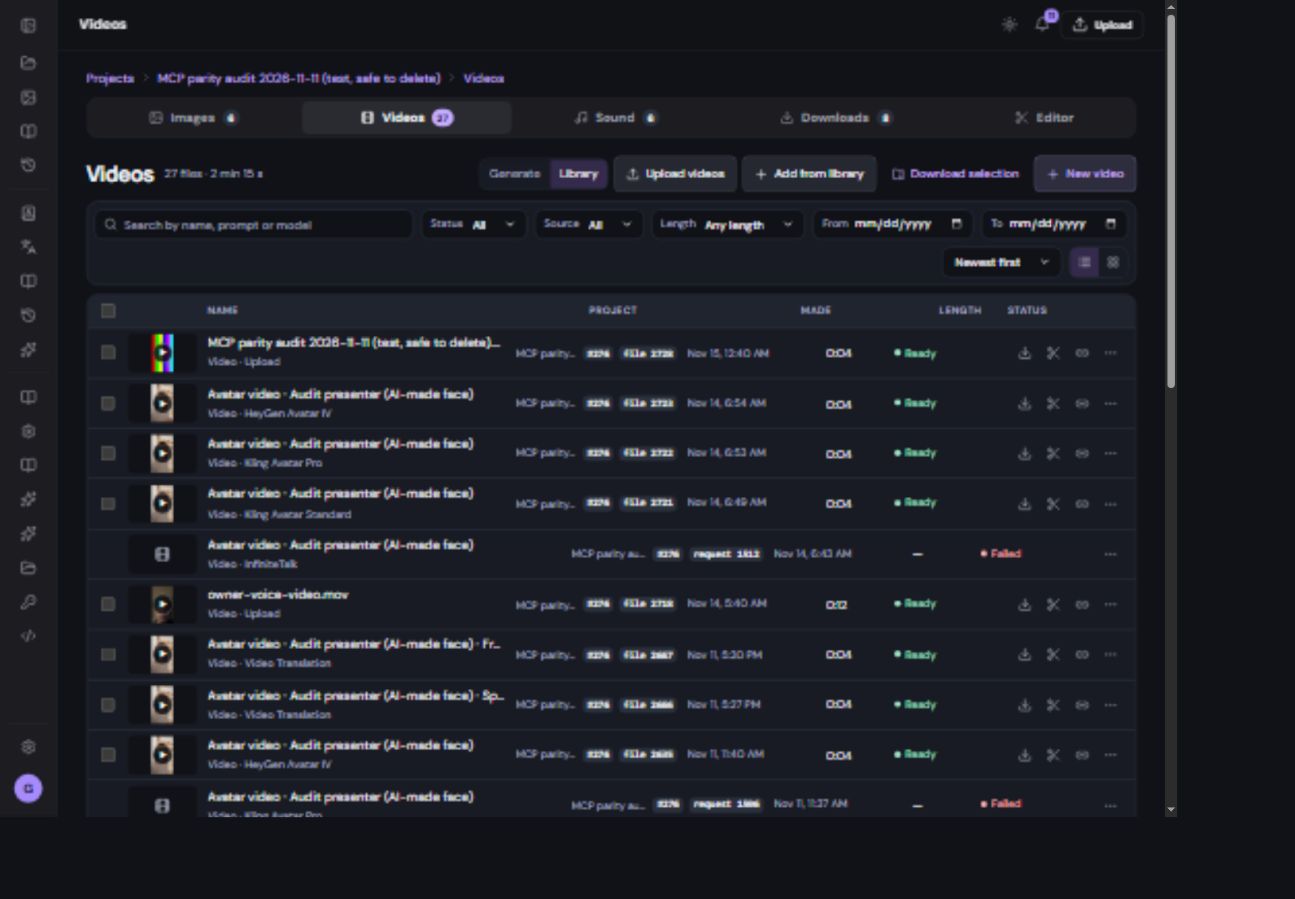
- Click the result’s play control.
A source image in the large preview is not a video. Select the completed video result or its version first.
- Watch from beginning to end.
Check subject consistency, framing, unwanted cuts, voice timing and the ending.
- Keep the version you prefer.
Use Add to editor to build a story. Regenerate as new creates another job for comparison; it can incur another charge.
Multiple shots, talking videos and longer stories
A supported storyboard mode gives each shot its own prompt and duration. Check the total duration and source limits in that model’s form. Use Editor when you need precise cuts, titles or a longer sequence assembled from several clips.
For exact spoken words, follow the talking-avatar guide. The speech file supplies the words; the performance prompt describes expression and movement. For an existing clip in another language, use Video translation.