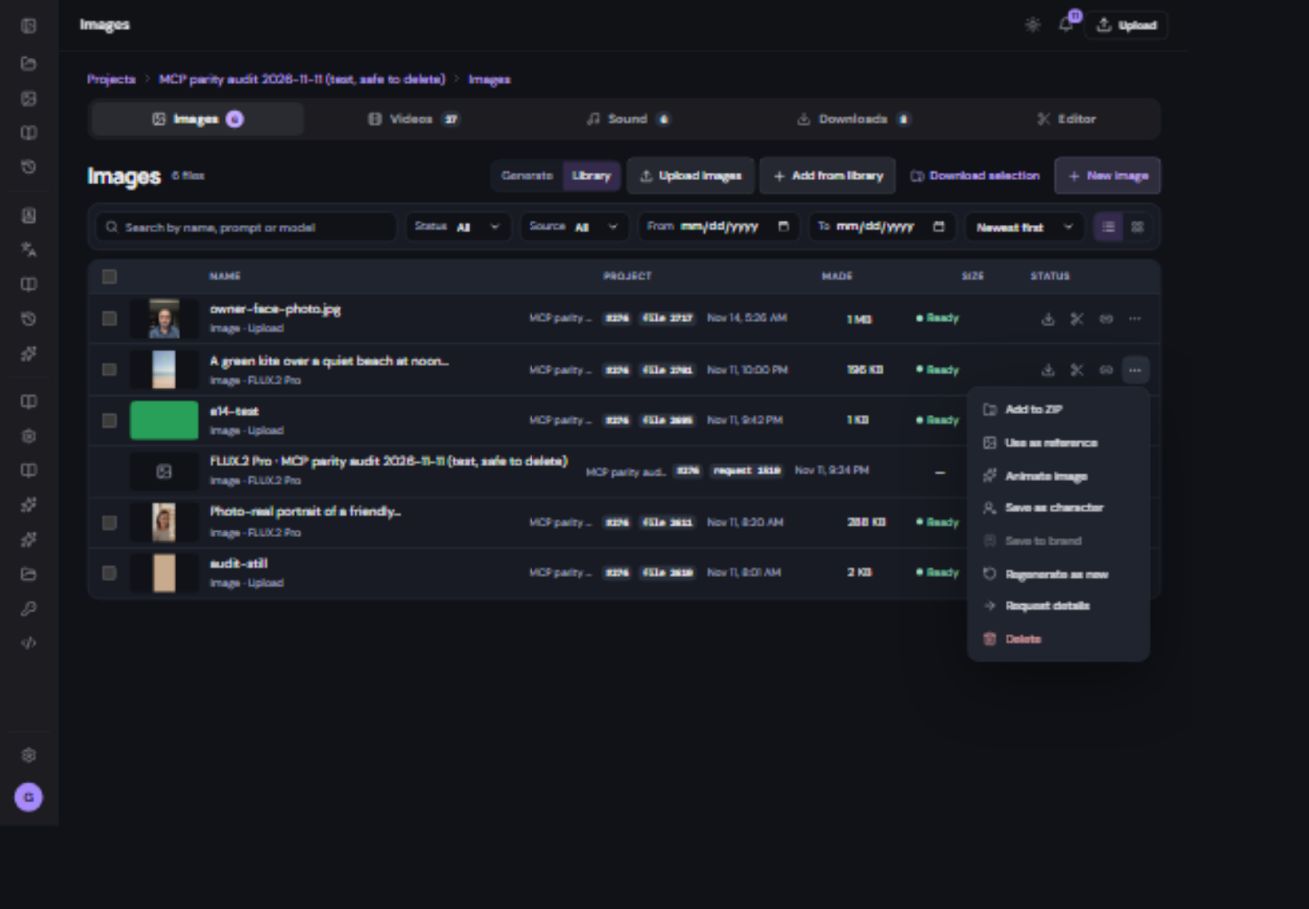
Find and reuse existing media
Choose a saved file instead of uploading or generating the same thing again.
Find the right source
Open Project library for the current project, or use a form’s Choose file / Choose image control. Depending on the picker, you can browse this project, generated media, brand media, other projects or all media you can access. A generation slot may intentionally show only compatible files.
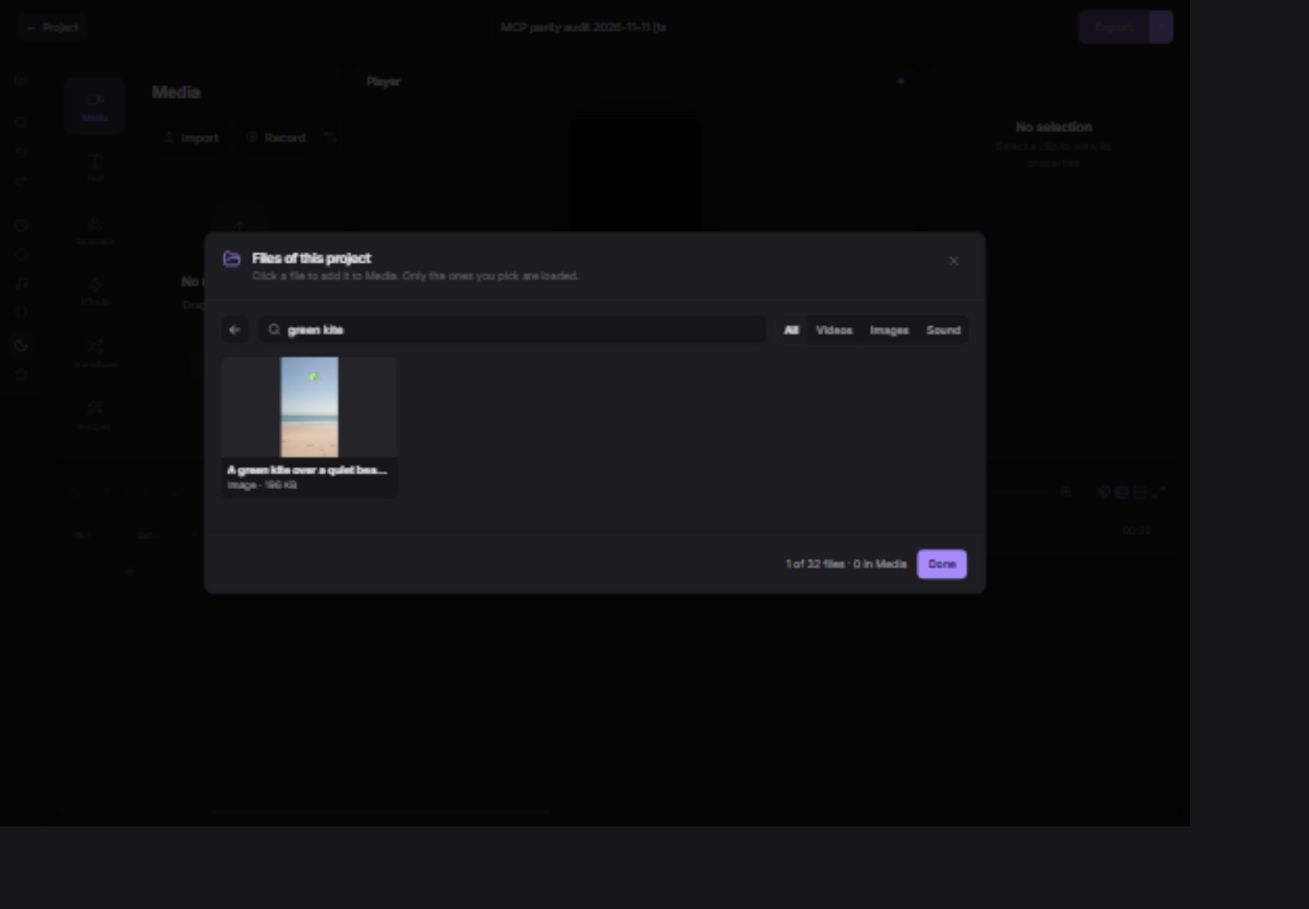
Reuse a file step by step
- Open the destination first.
For example, open a video’s start-frame slot or Editor → Import → From this project.
- Search and check the preview.
Confirm file type, name, length and project.
- Select the file and apply the choice.
The destination should show a thumbnail or playable audio preview.
- Check any remaining requirements.
A model can require a different size, duration or additional speech or motion reference. Being in the library does not make a file compatible with every model.
Reuse is not a new backup
A reused file may still be the same underlying asset. Adding it to another project does not reset its expiry or guarantee an independent copy. Deleting that asset can affect other places that reference it. Keep important originals and use the supported brand-save workflow for reusable brand material.