
Make a talking-avatar video
Turn a short script or speech recording into a presenter video you can add to a reel.
Before you begin
Open a saved avatar with a suitable front photo and completed setup. Choose Clone video. Have a short script or a clear recording of the exact speech you want. The generated video will follow the speech rather than an arbitrary target length.
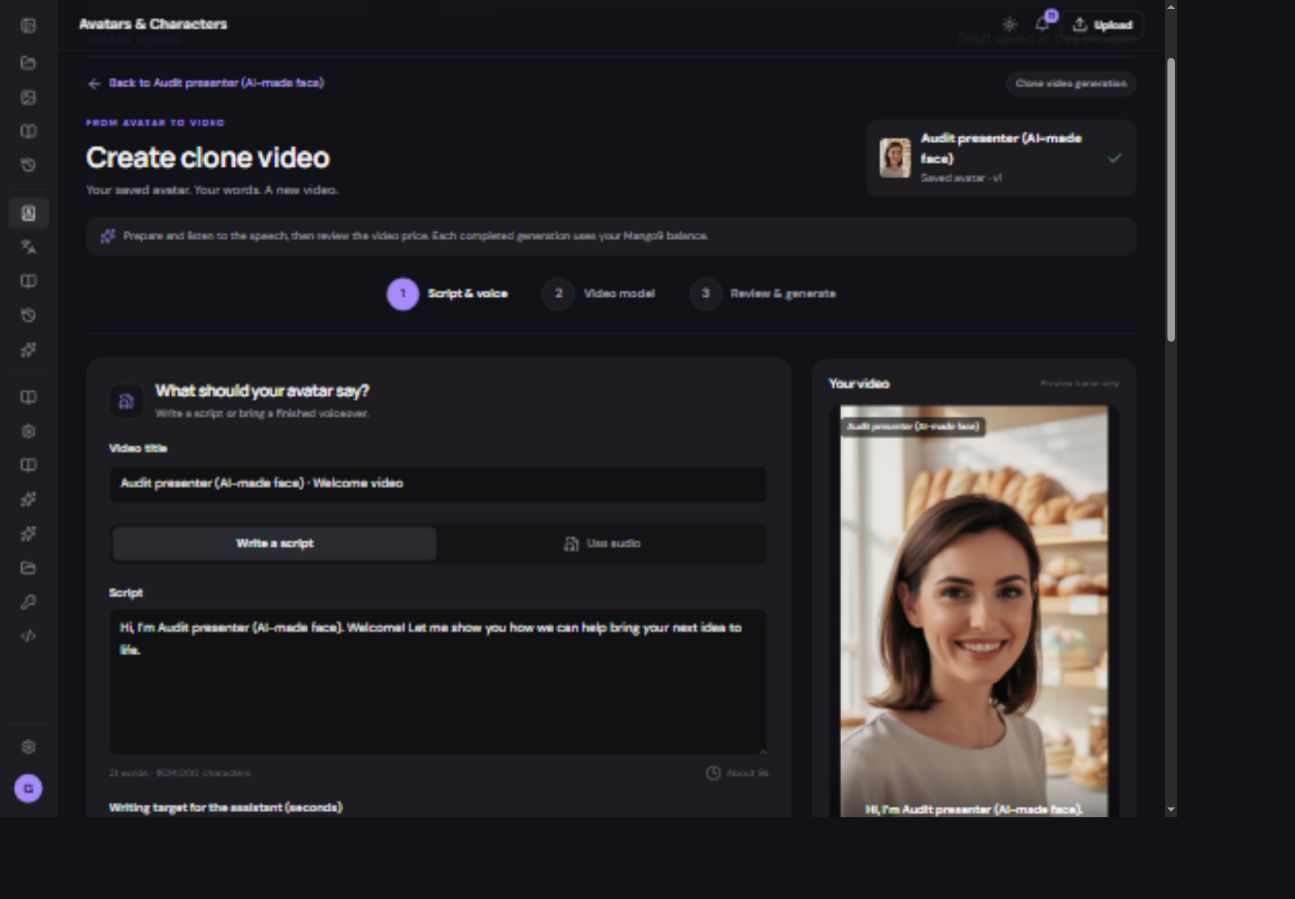
Step 1 — prepare the speech
- Name this video.
Use a title that distinguishes it from other takes, such as “Welcome — friendly version.”
- Choose Write a script or Use audio.
With a script, enter the exact spoken words. With audio, choose or upload the speech file and listen to it first.
- Choose the voice and delivery.
Use a preset or the available cloned-voice setup. Review language, pace and delivery. A writing-duration target helps shorten the script; it does not force the final clip to that length.
- Prepare and listen to speech.
Review the speech price first. Play the full result and check names, pauses and pronunciation before paying for animation.
- Continue with the approved speech.
If you change the script, prepare speech for the changed words. Do not animate an older recording by mistake.
Welcome to Willow Café. Order your favorite drink, settle into a comfortable seat, and make a little time for yourself today.
Step 2 — choose the video model
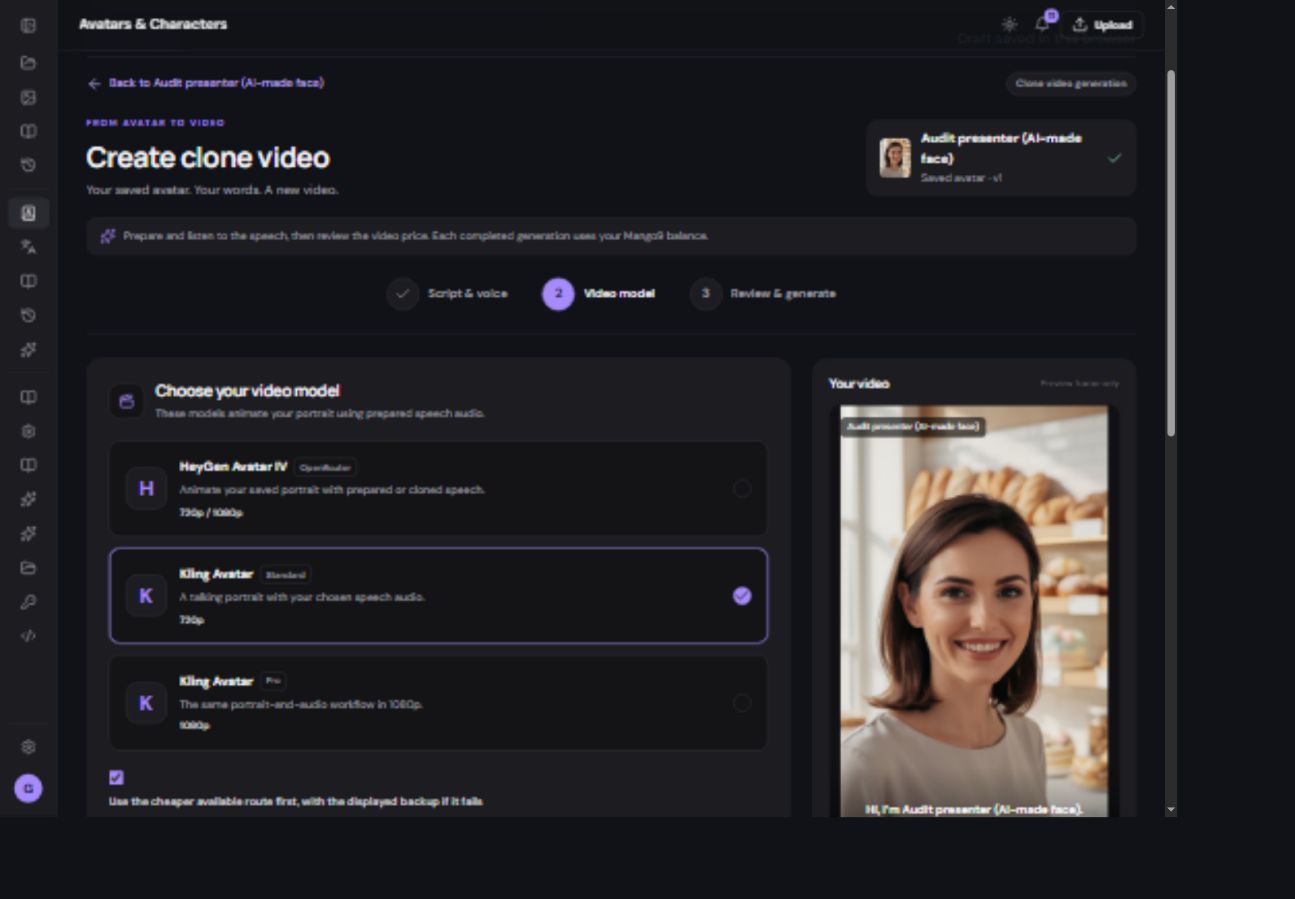
| Choice in this workflow | What to compare |
|---|---|
| HeyGen Avatar IV | The offered quality setting and live quote. |
| Kling Avatar Standard | The supported 720p route, input requirements and quote. |
| Kling Avatar Pro | The supported 1080p route, input requirements and quote. |
Use the performance direction for expression, gaze and movement, such as “Friendly expression, natural eye contact and gentle head movement.” The supplied speech provides the words. Read any optional cheaper-route/backup choice before enabling it.
Step 3 — review and generate
- Review the complete request.
Check avatar photo, approved speech, chosen video route, performance direction and price. Resolve any required-field message.
- Confirm once and follow progress.
Use history or the generated-videos area to follow the existing job.
- Play the finished clip.
Check the whole sentence, lip timing, face consistency and ending. Download the result or add it to Editor.
InfiniteTalk is retired for new Create requests. Its name may still appear on older history records. Use one of the currently offered talking-video routes for new work.