
History, progress and request details
Find out what ran, what completed and what needs attention without starting duplicate jobs.
Choose the right history
Project history focuses on the current project. All history helps you find work across the projects you can access. Notifications draw attention to updates, but history is the place to inspect a particular request.
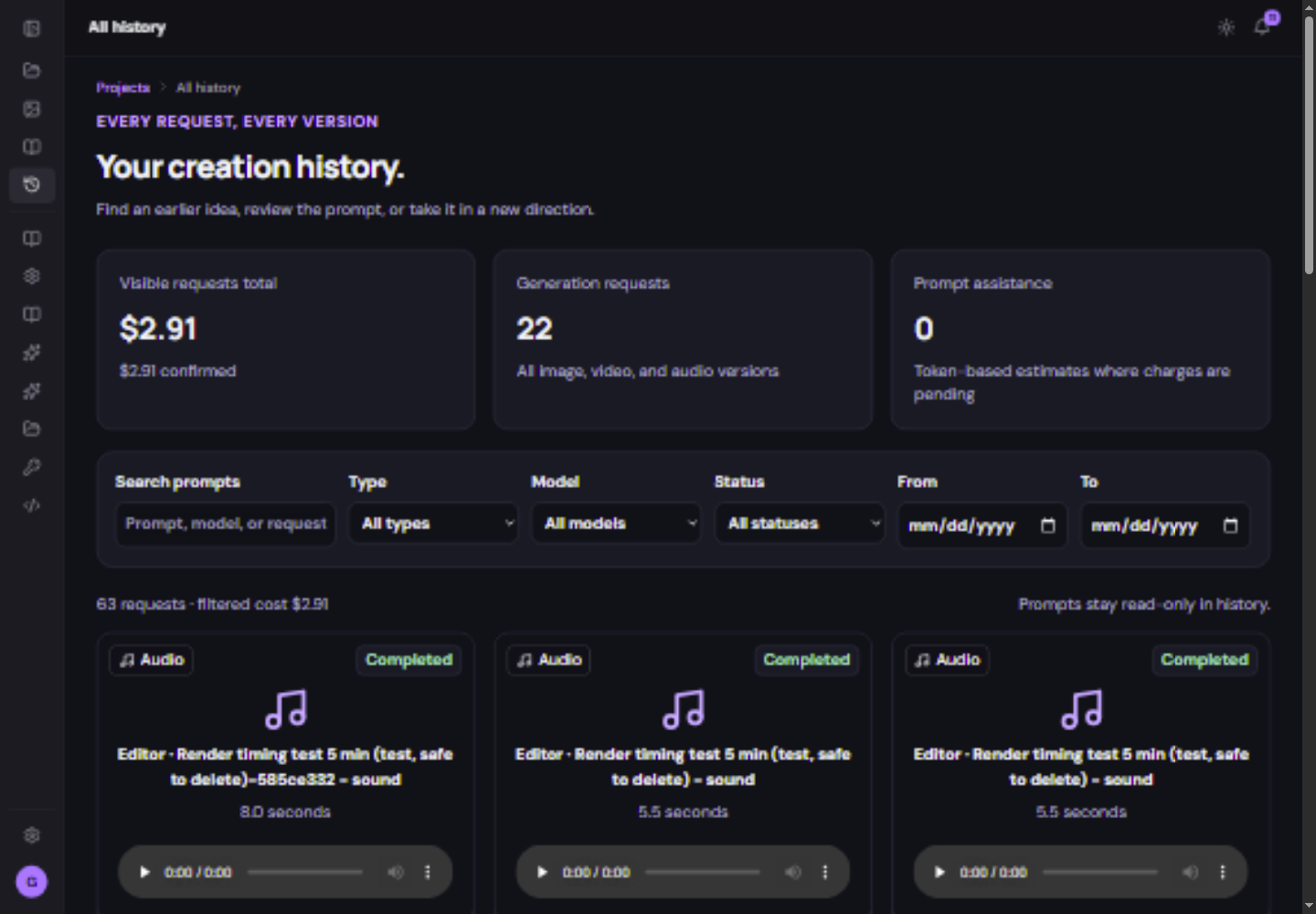
Find a request
- Search by prompt, model or request number.
Use the name or phrase you remember from the generation.
- Narrow by type, model, status or date.
Clear a filter if it hides the expected request.
- Open the details.
Read the actual error or progress state and look for the linked result.
- Take the next appropriate action.
Preview a completed file, wait for an active job or correct a failed request before retrying.
Read the status
| Status family | Meaning |
|---|---|
| Queued / waiting / submitting | The request has not finished starting or is waiting for work. |
| Processing | The existing request is still running. |
| Completed | The job returned a result; inspect the linked file. |
| Failed / blocked | Read the reason and required correction. |
| Cancelled / review | Check the details rather than assuming a ready file exists. |
An estimated amount is not the same as a confirmed charge. Read the request’s displayed billing state. Deleting a file does not remove its billing log. An older retired model may remain on a historical record even though it cannot be selected for new requests.
Report a problem clearly
- Include the project and request or file number.
- Copy the error message and say which step produced it.
- Describe the source type, model and mode without sharing API keys or private consent recordings.
- Say whether the downloaded source works when the browser preview does not.