Your first Create project
Start with a small goal, find the right page and make one result you can reuse.
Choose one clear goal
For your first project, try a five-second product scene or a simple image with a headline and music. Decide who it is for and where you will use it. A vertical reel usually needs a tall picture; a website banner usually needs a wide one.
I want a short vertical reel for a café: one inviting coffee image, the words “Your morning starts here,” and gentle background music.
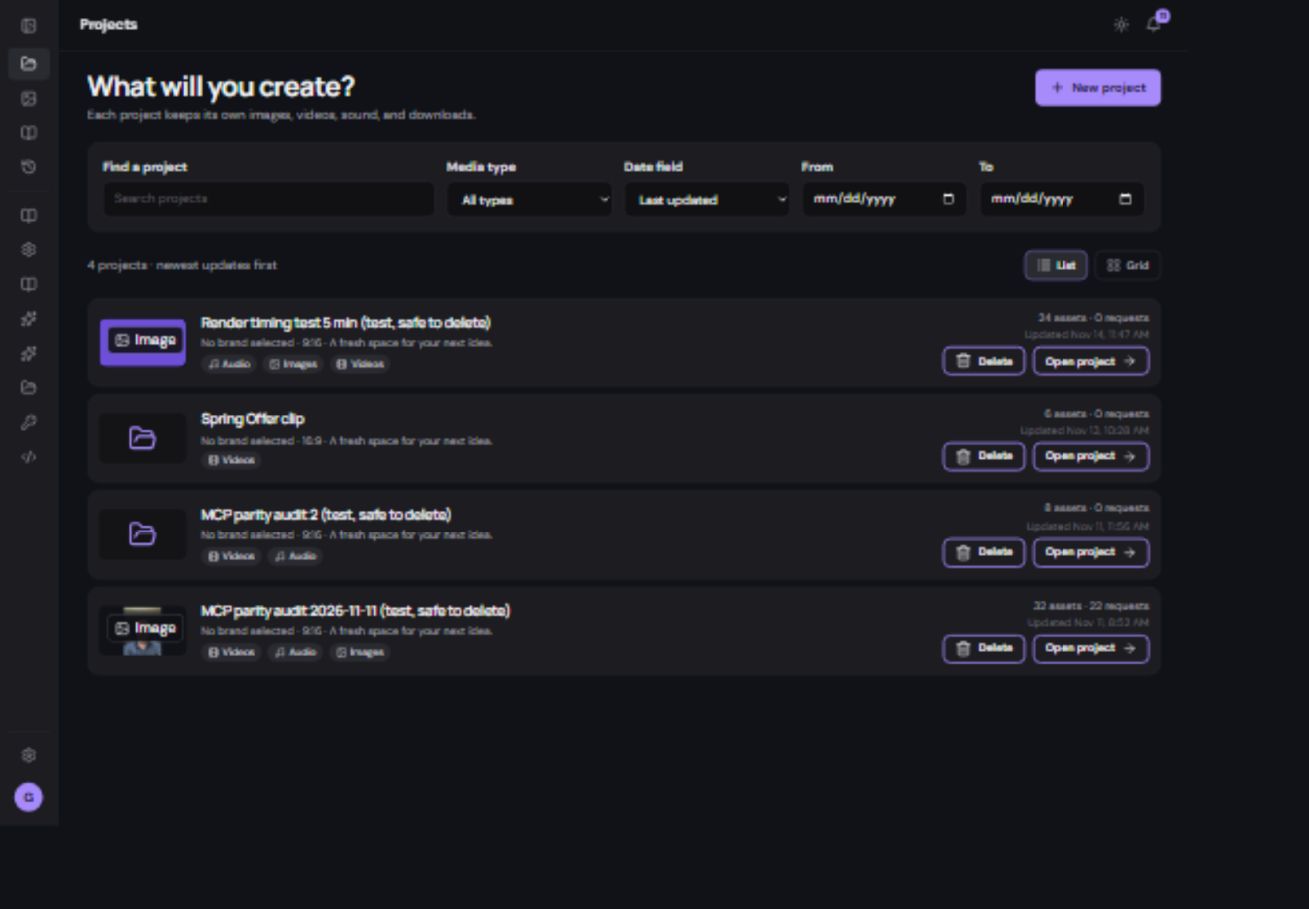
Create and open the project
- Open Projects.
Use the sidebar. On a narrow screen, open the menu first. Search and date filters help when you have many projects.
- Choose the new-project action.
Give the project a useful name. Associate a brand if you want to reuse that brand’s assets.
- Open your project.
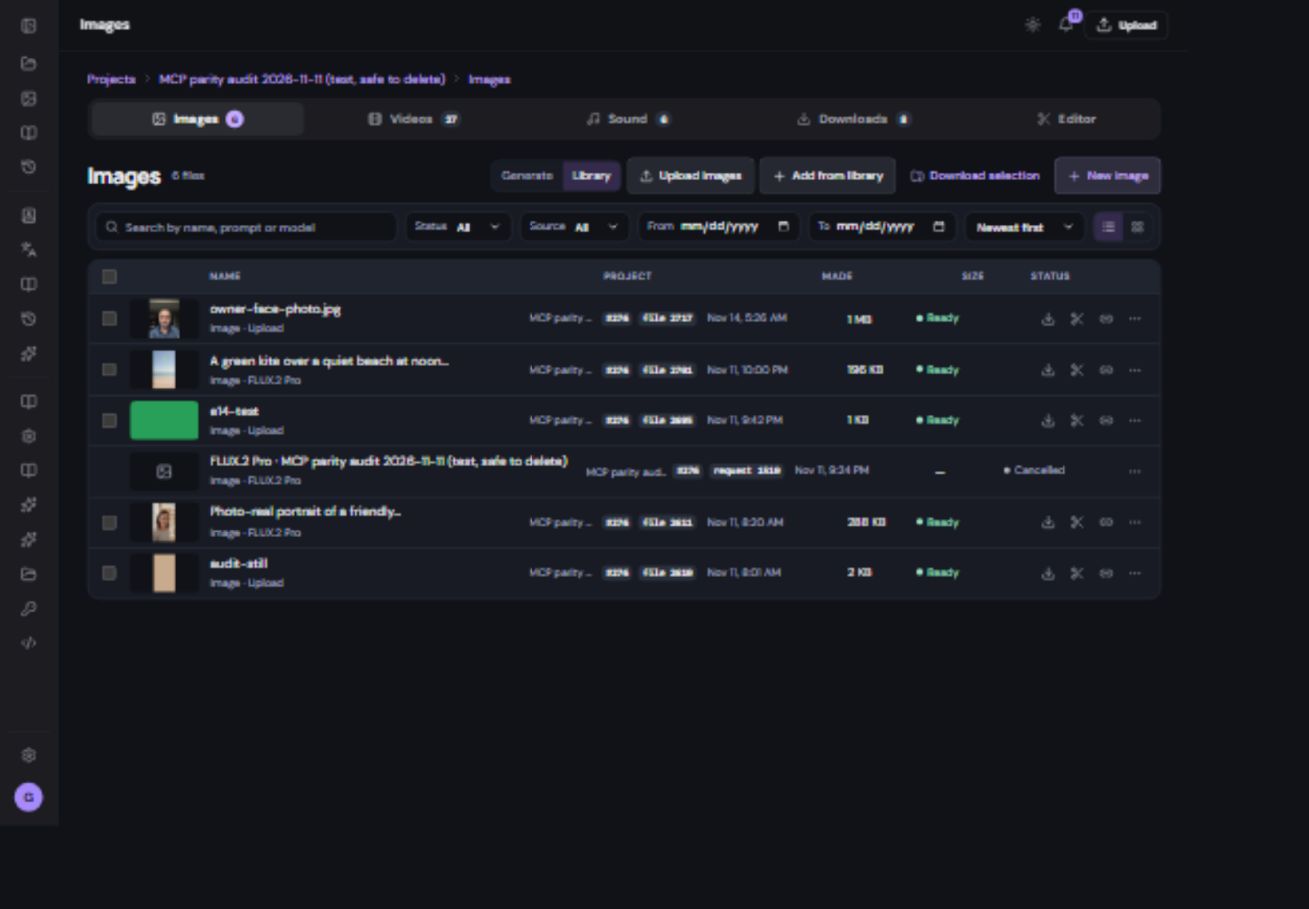
The project tabs take you to Images, Videos, Sound, Downloads and Editor. On mobile, use the tab icons; their labels are available to assistive technology.
- Start with Images.
Choose New image or the generation action, select a model, describe the picture and review the price before confirming.
Find the file you just made
When the request completes, it becomes a ready file. Open Images, Videos or Sound for its type. Search its name or prompt, or use the source and date filters. If it is still processing, open Project history instead of starting the same job again.