
Save video sound to your project
Reuse a video’s audio as a separate sound file without generating it again.
What this is useful for
A video may already contain a useful spoken introduction or ambient sound. Saving its sound lets you reuse that recording in another edit. It copies the chosen source range into a separate audio file; it does not create a new voice or translate speech.
Save the sound from the editor
- Import the video from this project.
Use Import → From this project so the editor knows which saved Create file the sound belongs to. If it is only local, finish saving the source into the project first.
- Put it on the timeline and separate its sound.
Use the selected video’s audio-separation control, then select the resulting sound clip. Keep the range you want.
- Open the sound clip’s context menu.
Choose Save to project sounds.
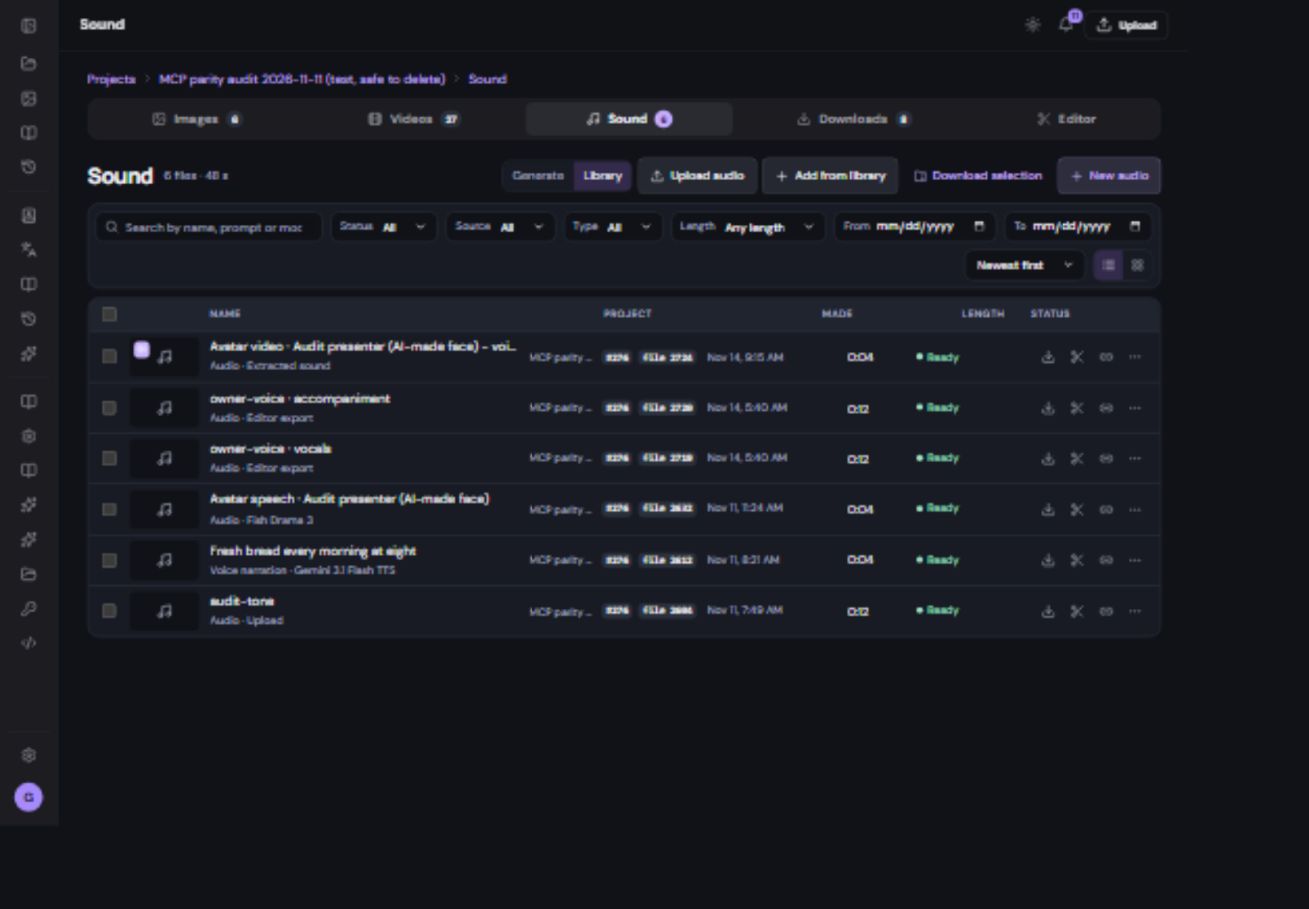
- Wait for the result and open Sound.
The new MP3 appears with the From the editor source label. Play it and confirm it contains the intended section.
What the saved file includes
| Included | Not included |
|---|---|
| The selected source-audio range | Other timeline tracks |
| The original recording from that source | A complete mixed soundtrack |
| A separate project audio file | Baked-in clip volume, fades or effects |
If it cannot save
- No sound track: choose a video that actually contains audio.
- Source is not saved in the project: add it from Import → From this project and separate the sound again.
- The selected range is empty or invalid: check that its end is after its start and falls within the source.
- The file is no longer available: locate or restore the original before retrying.