
Troubleshoot Creative Studio
Use the message and the current step to recover uploads, avatars, playback, editing and exports.
Start with the current state
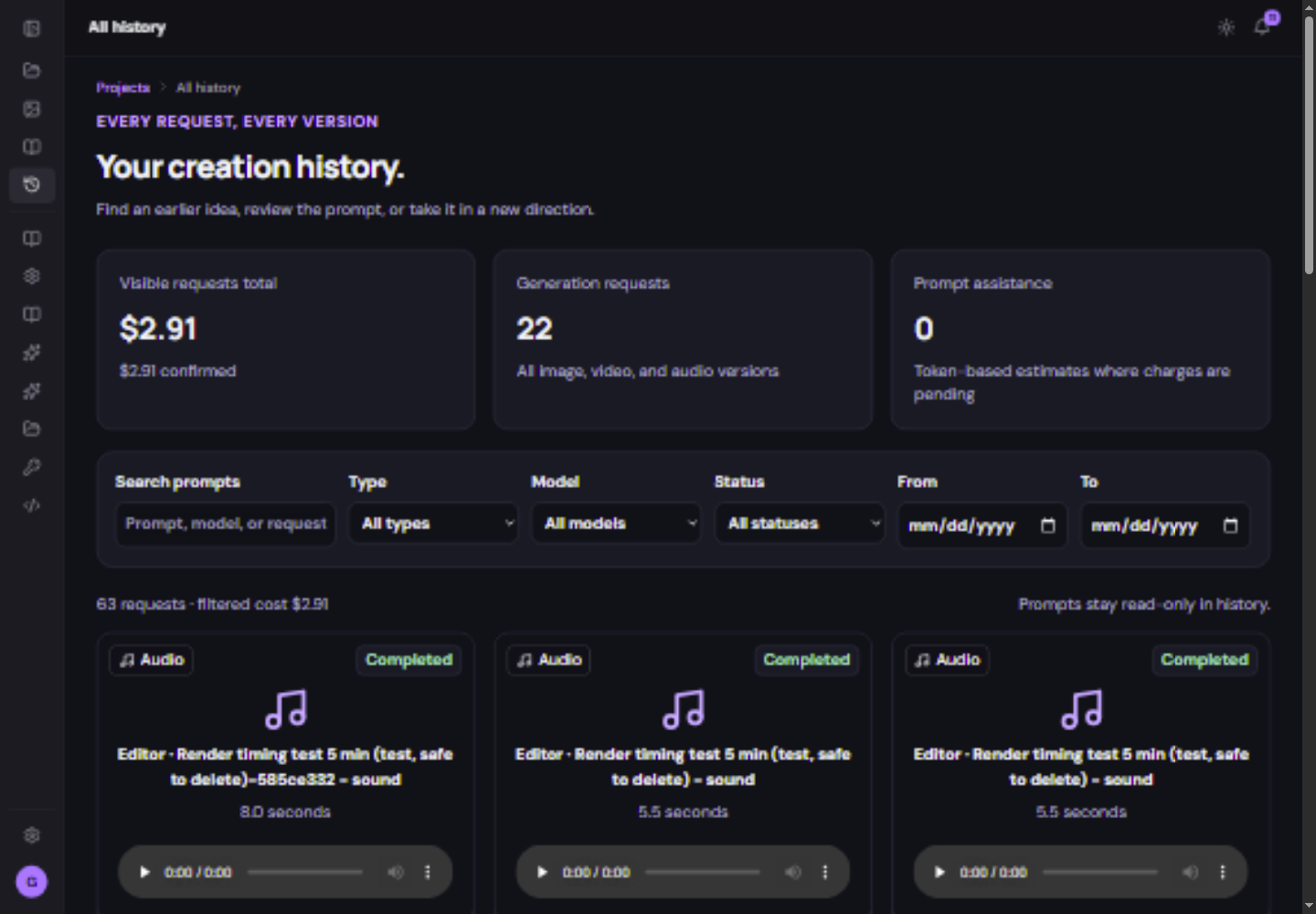
Check the intended account and project, then read the visible error. Search Project history for the request before submitting the same operation again. A completed upload, a saved avatar and a generated video are three different milestones.
Uploads and avatars
| Problem | What to check |
|---|---|
| Upload finished but avatar is missing | Complete the avatar wizard’s Review step and choose Save avatar. Uploading source files does not save the avatar record. |
| Reference does not appear in a form | Choose it in the actual input slot. A library file is not automatically selected. |
| Permission step is incomplete | Check legal name, wording, language and the separate recording. Uploaded does not mean provider-verified. |
| A voice sample is rejected | Use one clear speaker and the format, size and duration shown in the voice field. Keep consent in its separate slot. |
| Avatar video is unavailable | Review required photo/speech, current model availability, permissions and the message in the form. InfiniteTalk is retired for new requests. |
Generation and playback
| Problem | What to check |
|---|---|
| Generate is disabled | Required inputs, prompt length, model mode, supported file limits and your access. |
| The large preview is a still image | It may show the input image. Select a completed video result and use its play control. |
| The video will not play | Confirm it is ready and available. Try its preview again and test the downloaded source. Report its file/request number if only the player fails. |
| The wrong words are spoken | Listen to the approved speech before animation. A motion prompt does not replace the spoken script. |
| Sound is missing or competing | Listen to the original result. Check model audio options and the editor’s track/clip levels before generating again. |
| A job is taking longer than expected | Check the existing request status and notifications. Do not submit repeats merely to refresh progress. |
Browser editor problems
| Problem | What to check |
|---|---|
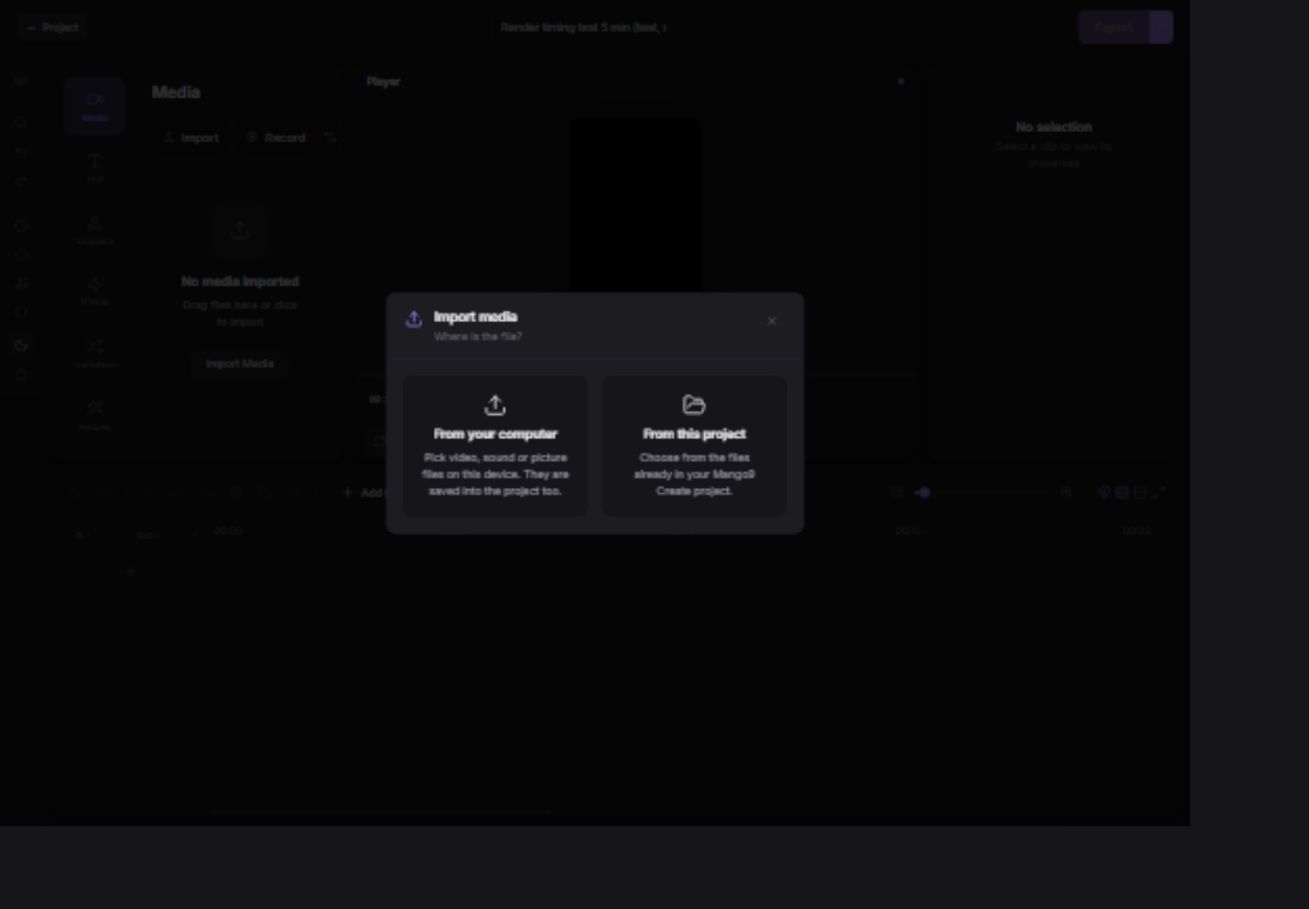
| Media panel is empty | Use Import → From this project and choose ready files. Project media is not automatically placed in the editor. |
| Media appears but timeline is empty | Drag or double-click media to add it to the timeline. |
| A picture is cropped | Select its clip and review Fit/Fill, scale and position in Inspector. |
| A blank gap appears | Check clip timing and hidden tracks around the playhead. |
| A different computer has an empty edit | The current working timeline is browser-local. Project files and exports do not automatically synchronize that timeline. |
| Import says Kept in the editor only | Keep the original local file. Resolve the project-save issue before relying on it from another device. |
| Save to project sounds cannot find the source | Import the saved video from the project and separate its sound again. |
| The editor page is blank | Reload once after checking the browser saved state and access. If it persists, report project, browser and the visible error; do not clear site data as a first step. |
Exports and missing files
| Problem | What to check |
|---|---|
| No new Downloads entry | Check whether you chose the computer-only save destination, and read the export completion message. |
| Export stopped when the browser closed | Keep the browser and computer awake during export. The browser performs the work. |
| Only part of the video exported | Check Entire timeline versus Marked In/Out. |
| Finished export could not save to Create | Use the offered local-download fallback, then address the save error. |
| An older result is unavailable | Generated media and exports have a 30-day availability period. Look for a retained local copy or approved brand copy. |
| A shared link stopped working | The link may have been revoked, or its underlying file may no longer be available. |
Ask for help with useful details
- The page, project and request or file number.
- The exact error message and the step immediately before it.
- The model and creation mode, if generation is involved.
- Whether the downloaded media works outside the preview.
- Your browser and whether you are using the same browser as the original edit.
Do not send passwords, API secrets or private permission recordings in a general support message. Use the support team’s requested secure channel if they need sensitive source material.