
Model help
Choose a model for your goal, check its required inputs, and understand the controls before generating.
A model is the AI engine that makes your image, video or sound. Choose it for the job and the source material you have. The suggestions below are starting points, not rankings or guarantees.
For the guided script-and-speech workflow, including HeyGen Avatar IV and Kling Avatar choices, read Make a talking-avatar video. It is separate from the general video composer.
FLUX.2 Pro
Product photography and clean campaign visuals
A good starting point for
Start with one product reference when the packaging must remain recognizable. Describe the surface, light and camera angle, then inspect the label and shape at full size.
What you need
0–8 reference images
JPEG, PNG, WEBP · up to 10 MB each
Use FLUX.2 Pro in Create
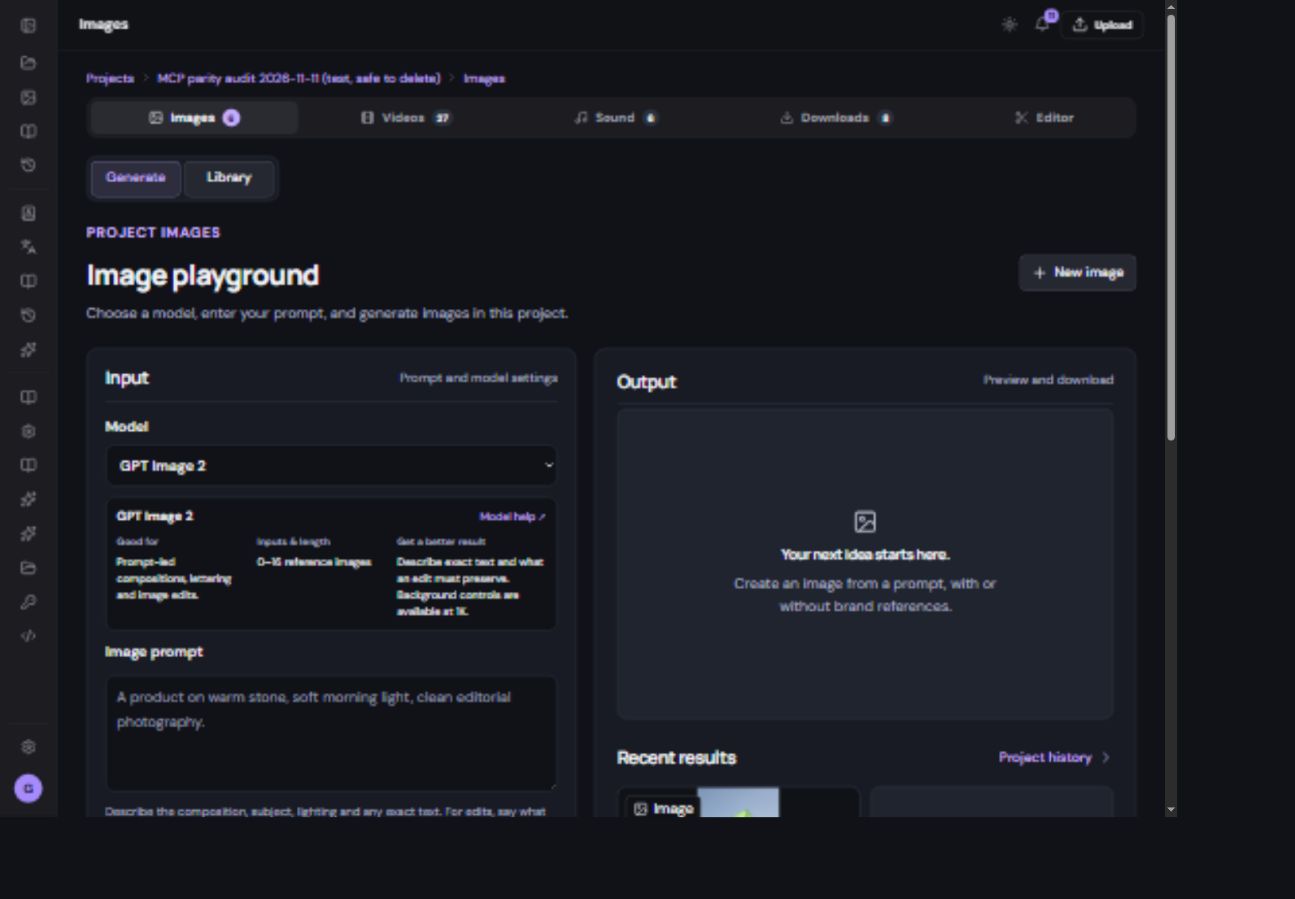
- Open your project, then Images → Generate. Choose FLUX.2 Pro in the model dropdown.
- Prepare the inputs. 0–8 reference images. Wait for each upload to finish and check its thumbnail or audio preview. A completed upload is a source file, not a generated result.
- Write the prompt. Use the example below as a starting point and replace its subject with your own. For edits, say what to change and what to preserve.
- Check the controls and price. Use the supported choices in the form. Changing mode, duration or resolution can change other available fields and the quote. Review generation and price, then confirm once.
- Review the completed result. Find it in the project library or history. Enlarge it and inspect faces, product details and lettering. Regenerate as a new version to compare, or bring the approved result into Editor.
Try this example
Use the reference bottle unchanged. Place it on warm limestone beside a folded cream towel, soft morning window light, subtle shadow, uncluttered background.
Prompt length in this mode: 3–5,000 characters.
Controls explained
These are the controls for the selected mode’s default settings. The live form narrows them as you change related choices; not every combination below is valid.
If the result is not what you expected
- Generate is unavailable: check required files, prompt length, project access and any message under the form. A file in the library must still be selected in the input slot.
- The model changed the subject: use a clearer reference and reduce competing instructions. Change one part of the prompt at a time.
- The request is still running: check Project history and Notifications before starting another request. A second generation is a separate job.
- The settings look different: check the exact model option and mode. Option 1 and Option 2 can expose different inputs.
Read the provider’s FLUX.2 Pro reference ↗
Reviewed 2026-11-06 against the provider reference and Create’s form. Providers may offer extra capabilities that this Create route does not expose. Examples and workflow advice are Mango9 guidance.
The controls, in plain language
First project: turn one image and a soundtrack into a reel →