
Exports, downloads and ZIP bundles
Find finished videos, save local copies and deliver the right files.
Sources and finished results are different
| What you need | Where to go |
|---|---|
| One generated or uploaded image, video or sound | The file’s Images, Videos or Sound list. |
| One finished edited video | Export in Editor, then Downloads if you selected that destination. |
| A translated video | Downloads after translation finishes. |
| Several original files together | Add files to a ZIP bundle. This does not render a timeline. |
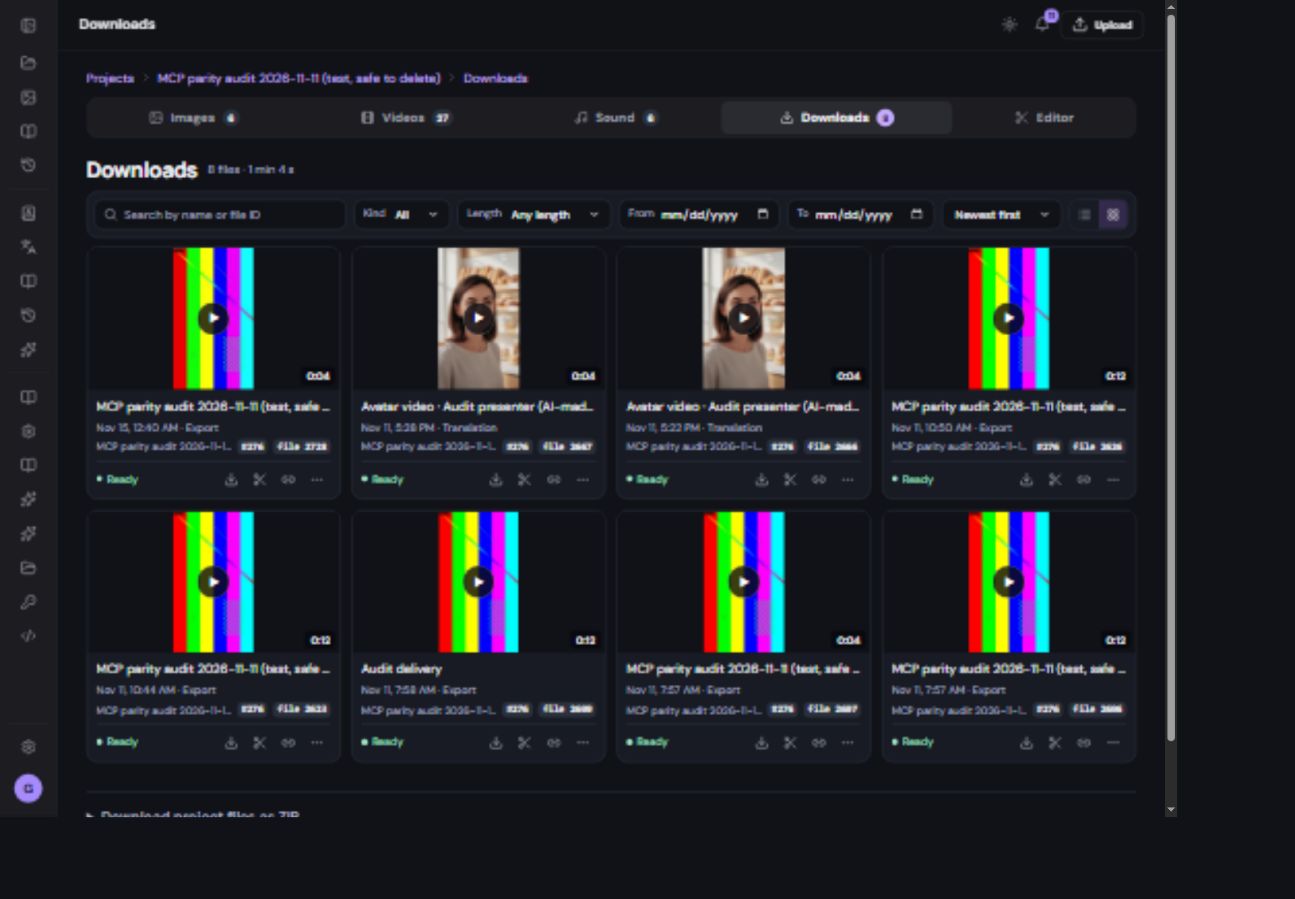
Save an editor export to Downloads
- Review your complete timeline.
Check the picture, text and sound before exporting.
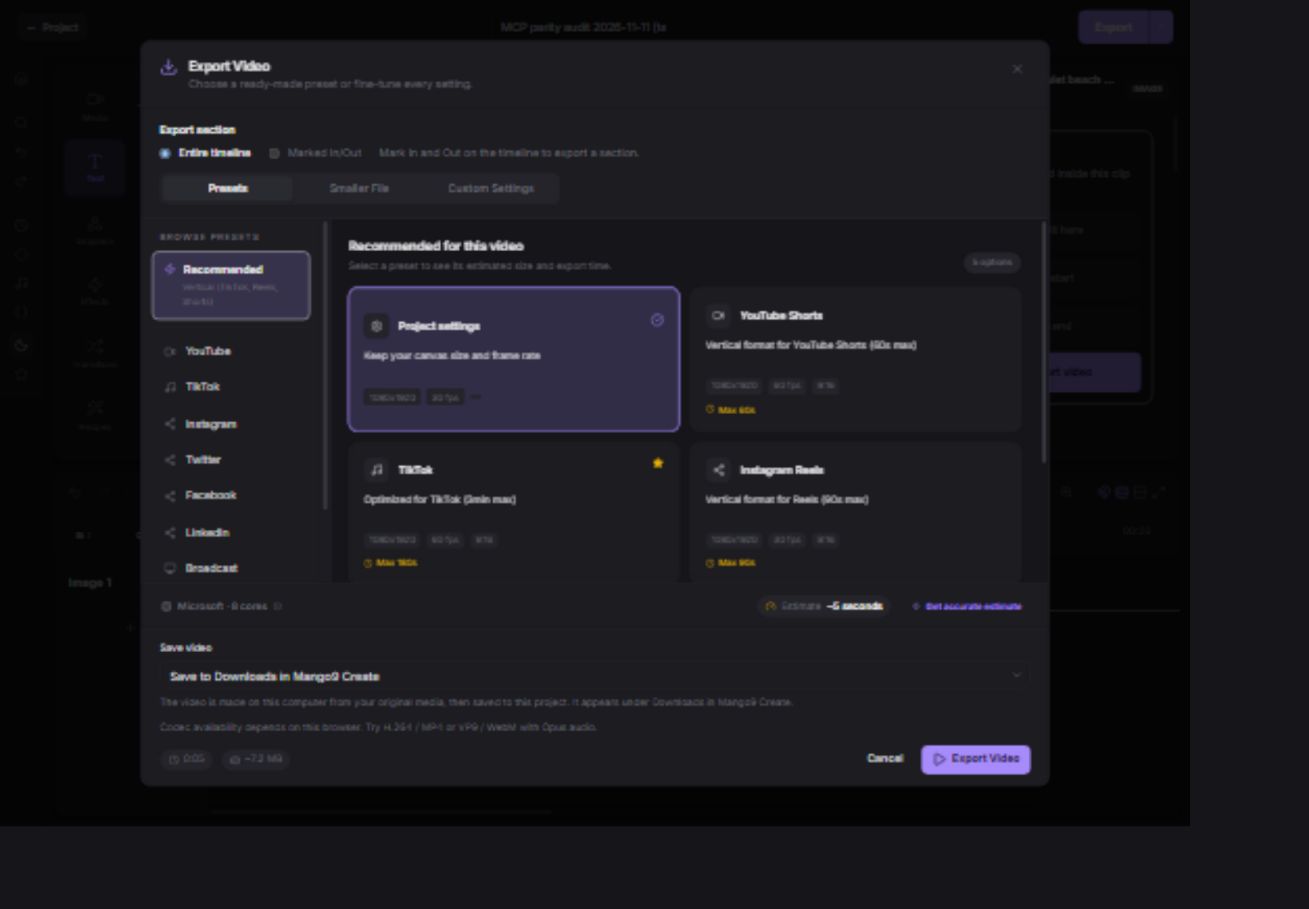
- Open Export and choose the range.
Entire timeline exports the full edit. Marked In/Out exports only that range.
- Choose output settings and destination.
Select Save to Downloads in Mango9 Create for a project result, or the local-file destination if you only need a computer copy.
- Keep the browser open until it completes.
Export runs on this computer. Read the final message before leaving the editor.
- Open Downloads and preview the result.
Search or filter by type, date or length if necessary. Confirm the intended version, then download it.
Understand export messages
| Message or situation | What to do |
|---|---|
| Saved to Downloads | Find the finished video in the project Downloads page. |
| Saved to your project, but not listed in Downloads | Keep the saved project file; use the message and request details to investigate the missing listing before exporting again. |
| Could not save to your project | Use the offered local-download fallback to keep the finished file, then resolve the save error. |
| Export is still running | Keep the tab open and computer awake. Do not assume it can finish after closing the browser. |
| Wrong section exported | Check whether you selected the marked range instead of the entire timeline. |
Deliver several originals
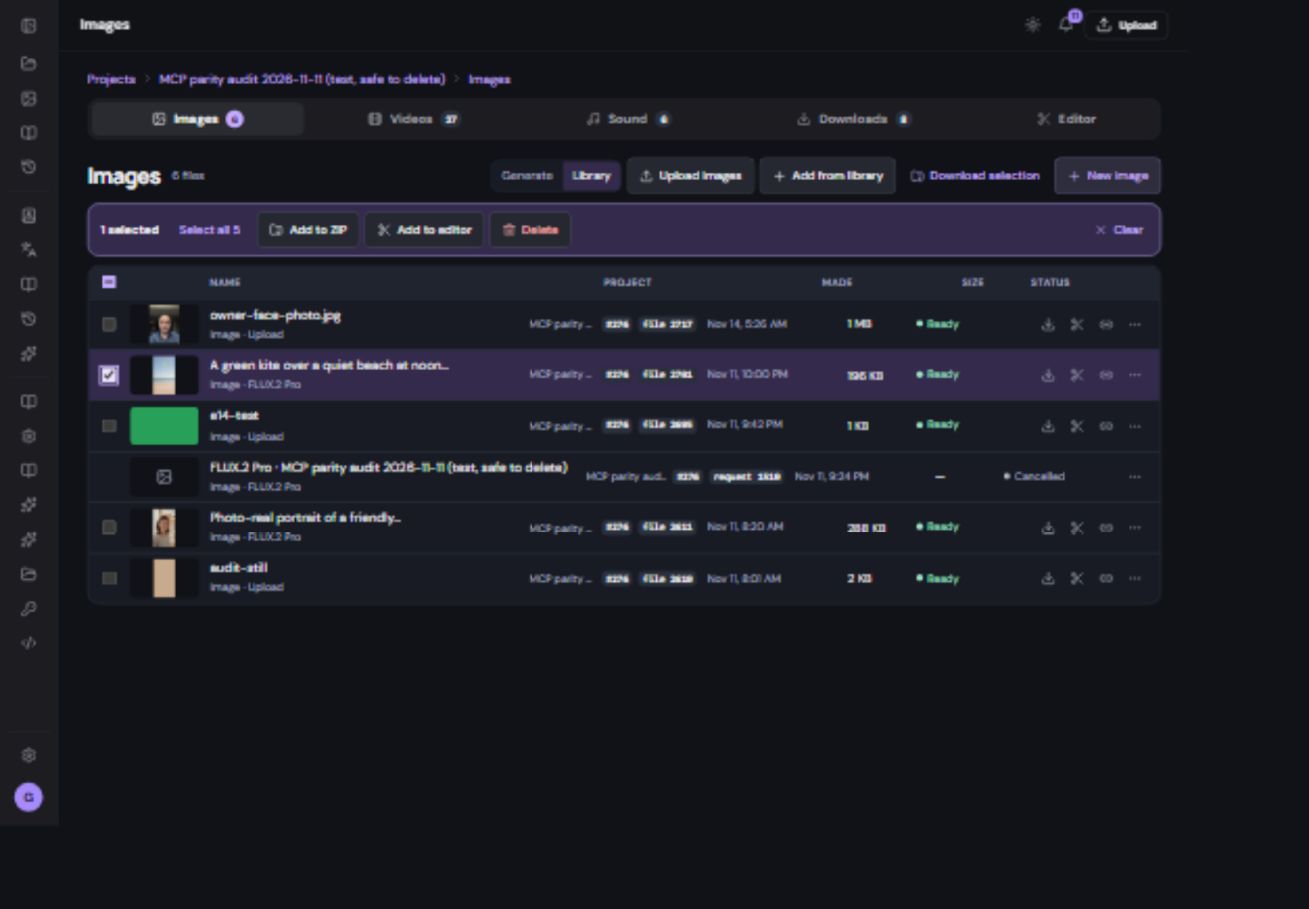
Use Add to ZIP from file actions or the selection toolbar, then follow the bundle controls. Choose this when a teammate needs the source pictures, clips and sound separately. Use Export when a client needs one finished video.
Keep and remove results
Generated media and exports are available for 30 days, so download important work before it expires. Sharing is optional; revoke a public link from its Share controls when it should stop working.
Deleting an export removes that finished file, not its billing history. It does not automatically delete the source media or the browser’s working timeline. Re-exporting still requires a usable timeline and available sources.