
Files, list view and bulk actions
Find the right file quickly, select several results and understand what each action does.
Read a file row
List view is useful when a project has many files. Grid view gives you larger previews. Switching views changes how the same files are shown; it does not move them.
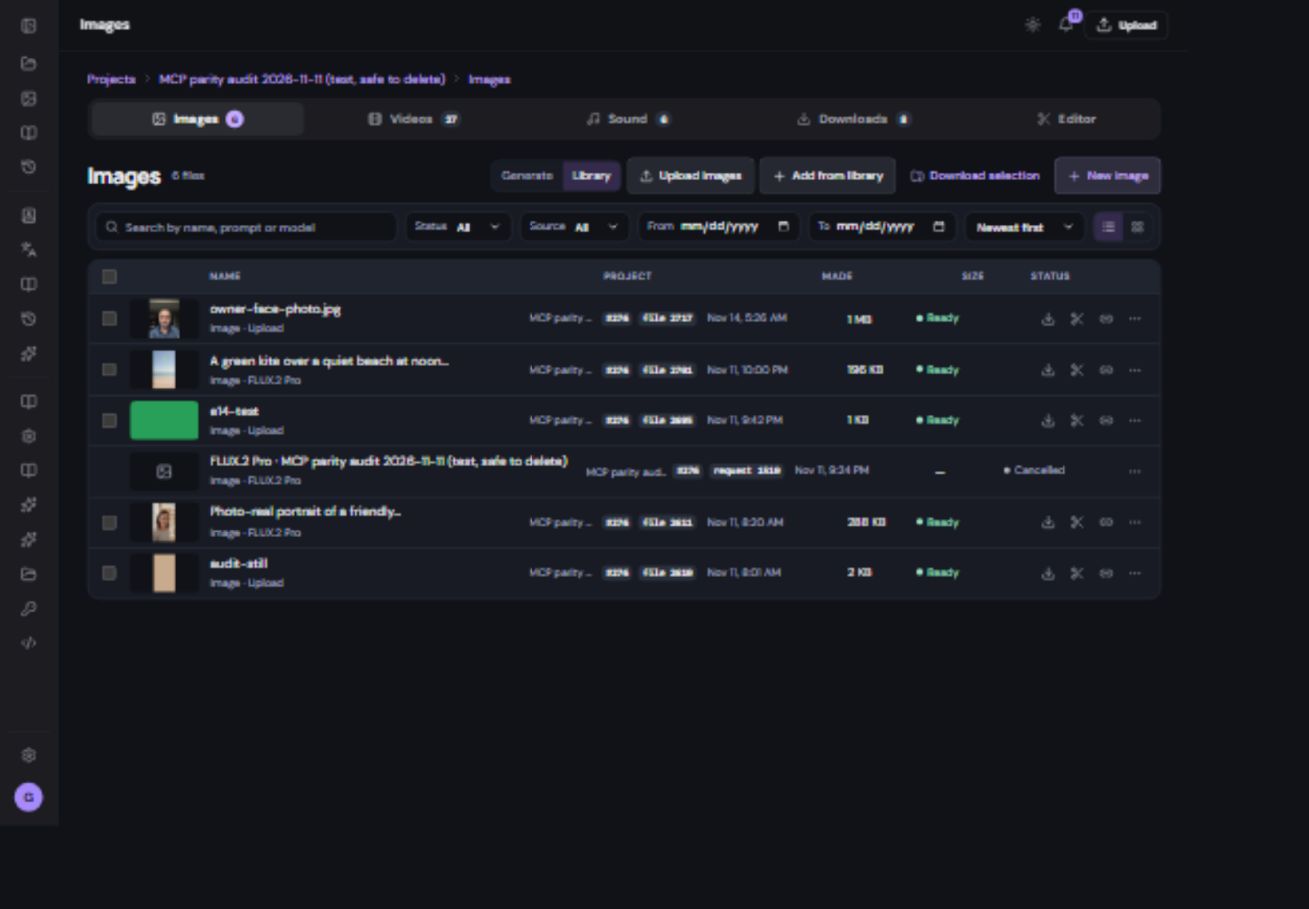
| Part of the row | What to use it for |
|---|---|
| Checkbox | Select the file for a bulk action. |
| Preview / play | Inspect an image or play a video or sound. |
| Name and IDs | Recognize the file; give the file or request number to support when needed. |
| Size or length | Check whether it is an image, a short clip or a longer recording. |
| Status | Use ready files; a running request is still being created. |
| Download icon | Save this source file to your computer. |
| Editor icon | Send a supported file toward the project editor. |
| Share icon | Manage a public link for this file. |
| More menu | Open additional actions supported for this file type. |
Search and filter
- Start with the right project and media tab.
Images, Videos and Sound have their own lists. All history searches requests rather than only ready files.
- Enter a name, prompt or model.
Use the search field above the list. Clear it if the expected result is missing.
- Narrow the result.
Use the available status, source and date filters. Video and sound lists also offer length or type controls where relevant.
- Choose the sort order.
Sort for recent work or the field that helps your search. Check the next page if the filtered set is longer than the current page.
Select several files
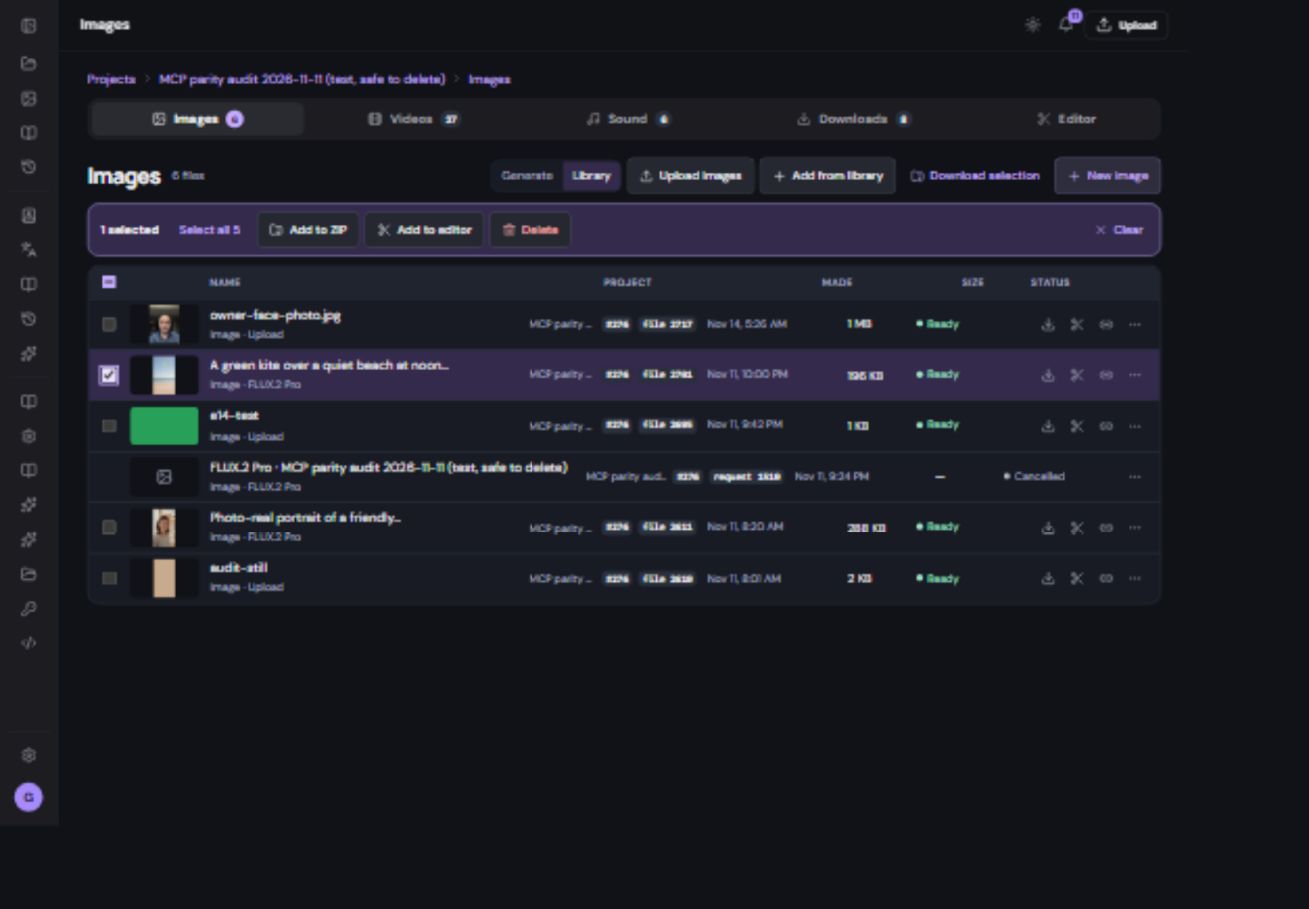
- Select one or more checkboxes.
The header checkbox selects files on the current page. Shift-select can select a range.
- Check the selection count.
If you use Select all with a larger count, it includes matching files across pages. It is tied to your current filters, not every file in the account.
- Choose an action.
Add to ZIP collects originals, Add to editor prepares media for editing, and Delete removes selected files after confirmation. Editor and ZIP bulk actions accept up to 50 files per action; split a larger selection.
- Clear the selection when finished.
Do this before starting a different action or changing your search.
Use the More menu
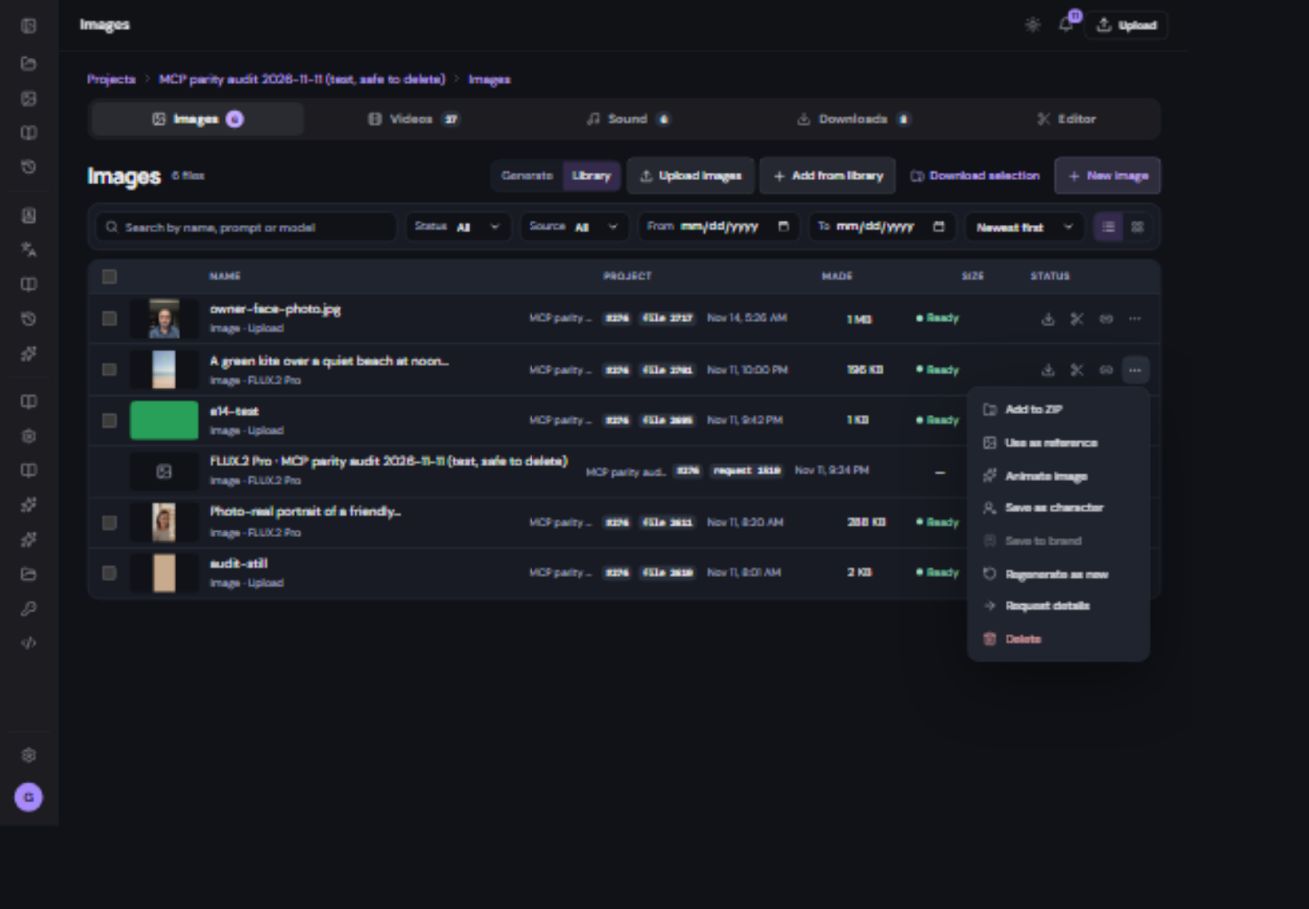
Available actions depend on the type, readiness, ownership and project context. Use as reference selects a file for another generation. Animate image starts a video form. Save as character starts reusable avatar setup. Save to brand appears when the file and project support it. Regenerate as new creates another version; it does not silently overwrite the original.
Share and delete carefully
- Open Share for a file you want to send.
Create or copy its public link using the controls shown. Anyone with a working public link can open the shared file.
- Revoke a link when access should end.
Return to that file’s Share menu. Revocation stops that link from working.
- Review Delete before confirming.
A file can be reused by another project, avatar or edit. Removing the underlying file can break those references and share links. Keep a copy if you may need it later.
Deleting media does not erase billing records. Deleting an avatar record and deleting its source files are separate actions. A completed export is also separate from its original sources.