
Website Builder
What is the Website Builder?
The Website Builder lets you create and publish a complete website by describing it in plain language. You tell the AI what you want ("a one-page site for my plumbing business with a quote form and a click-to-call button"), it generates a fast, mobile-friendly website, and you can publish it instantly on a Mango9 sub-address or your own custom domain.
It's built specifically for Mango9 users: the sites it produces plug straight into your CRM, so contact forms create leads, "Call us" buttons use your Mango9 number, and "Book now" buttons open your calendar.
Note: Sites are generated as clean, standard web pages (HTML/CSS/JavaScript). The builder is best for marketing sites, landing pages, and small business websites — not web apps with logins or server-side logic.
Key Capabilities
AI Chat Builder
Describe your site and iterate on it in a chat. The AI writes the whole page and rebuilds it as you ask for changes.
Live Preview & Inline Editing
See your site update in real time across Desktop, Tablet, and Mobile widths. Click any text to edit it directly — no AI credits needed.
Multi-Page & Versions
Generate additional pages (Home, About, Services, Contact). Every build is saved as a version you can restore or roll back.
Custom Domains with Free HTTPS
One-click publish to a public URL. Connect your own domain — SSL certificates are issued and renewed automatically.
How It Works
- 1Describe your site in the chat — be as specific as you like about the business, pages, style, and features.
- 2AI generates a live preview instantly. Optionally upload a reference image (logo, brand photo, or screenshot) first.
- 3Refine with more chat prompts or quick inline text edits.
- 4Connect integrations, SEO, and your domain.
- 5Publish — visitors' form submissions flow back into your CRM as leads.
The Editor
The editor has two sides: the chat (left) where you talk to the AI, and the live preview (right) where you watch your site take shape.
Building with chat
Type what to change or add — 'make the header dark blue', 'add a testimonials section', 'add an About page'. Attach images to bring in your own photos.
Inline text editing
Click directly on text in the preview, edit it, and save — no AI credits spent. Ideal for fixing a phone number or headline.
Preview options
Switch between Desktop, Tablet, and Mobile. Preview your draft or view what's currently published, and share a preview link.
Versions
Every AI build is saved as a version. Use the version menu to review earlier builds and restore one as your working draft.
The Editor Toolbar
The editor toolbar puts every powerful tool one click away — from responsive previews and brand theming to the full suite of CRM integrations, credits, and one-click publishing.

The top bar shows your version/live selector, the published site URL (with copy and open-in-new-tab buttons), your remaining AI credits, Settings, the Publish button, and your current Draft / Deployed status.

Responsive & Select
Toggle Desktop, Tablet, and Mobile widths to preview how your site looks on every device. Use Select to click and target a specific element on the page.
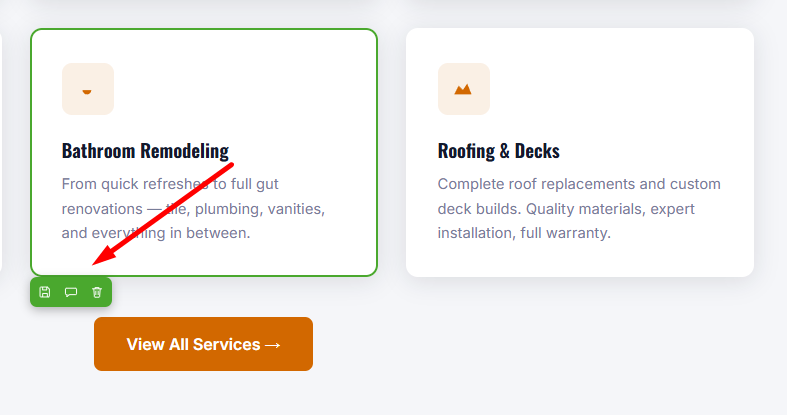
Inline Block Editing
Hover any block to reveal an inline toolbar to save, comment, or delete it — edit content right on the canvas without spending AI credits.
Brand Theme Panel
Open Brand to pick a ready-made preset (Sunset Orange, Ocean, Forest, Berry, Midnight) or set exact Primary, Accent, Background, and Text colors with hex values. Clicking Apply theme propagates the palette across every page and converts hardcoded colors into reusable variables.
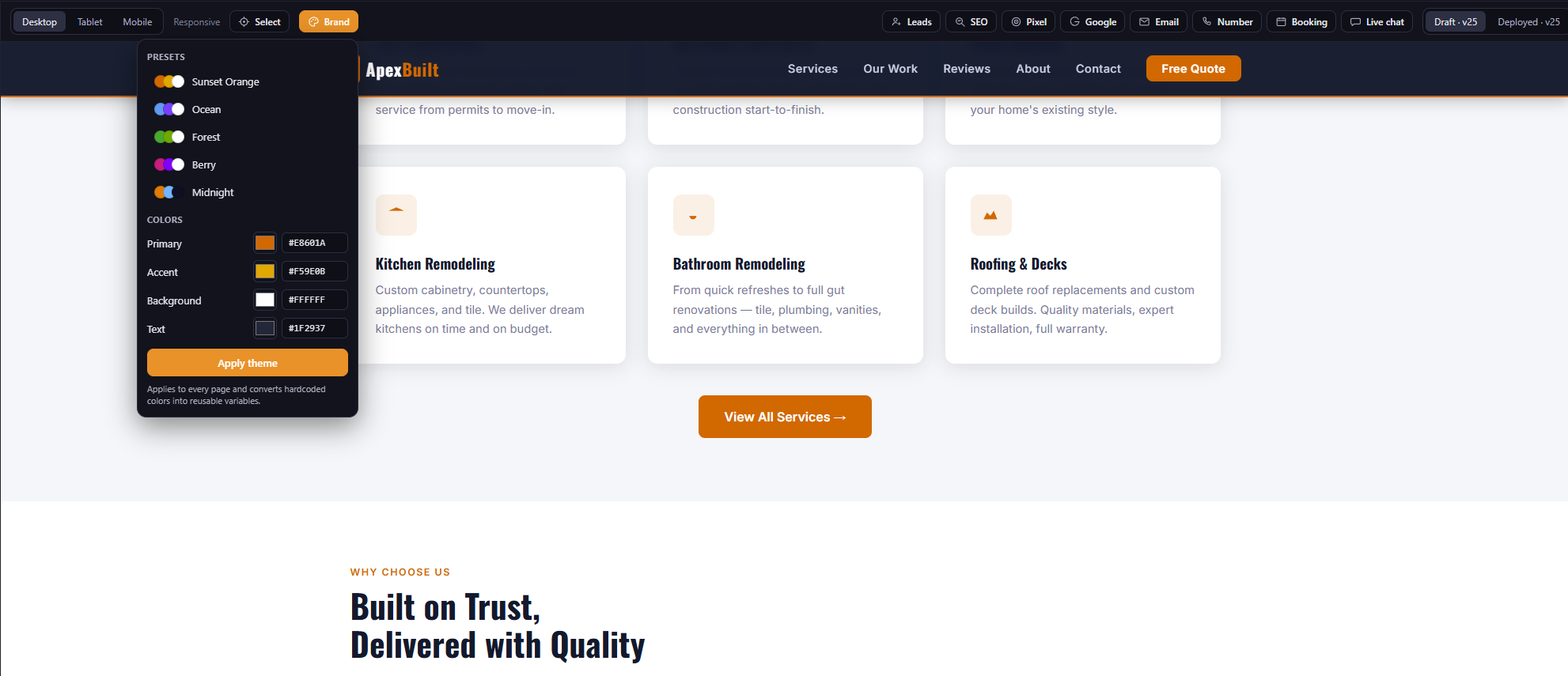
Toolbar at a glance
The bottom toolbar groups your integration tools — Leads, SEO, Pixel, Google, Email, Number, Booking, and Live chat — alongside the Draft and Deployed status indicators so you always know what's live.
Connecting Your Business (Integrations)
The integration tools connect your website to the rest of Mango9 so it actually drives leads and calls.
| Tool | What it does |
|---|---|
| Leads | Detects forms and wires them to create leads in your CRM, mapping fields and assigning a status/group. |
| Numbers | Adds click-to-call using one of your Mango9 phone numbers. |
| Booking | Embeds a calendar booking widget so visitors can book appointments. |
| Live chat | Adds a "Chat with us" widget connected to your Mango9 conversations. |
| Sends email notifications when a form is submitted and connects email capture to your CRM. | |
| SEO | Optimizes page titles, meta descriptions, and keywords for search engines. |
| Adds Google Analytics, Tag Manager, Ads, and related tags. | |
| Pixels | Installs marketing/conversion pixels (Meta, TikTok, Snapchat, X, and others). |
| Brand | Applies a color scheme/brand palette across the site. |
How form submissions become leads
When a visitor submits a form, Mango9 creates (or updates) a contact with the submitted details. If a contact with that phone or email already exists, the details are added as a note on the existing lead instead of creating a duplicate. You can also have the system email you each time a lead comes in.
Publishing & Custom Domains
Publishing
Click Publish to take your current draft live. Your site is immediately available at a Mango9 public address (…/site/your-site-name/). Previews are private working copies; publishing makes the live version visible to the world.
Connecting your own domain
- In Settings → Domains, add your domain (e.g.
www.yourbusiness.com). - Point your domain's A record to the IP address shown on screen at your DNS provider.
- Click Verify DNS, then Connect & secure to issue HTTPS.
- Optionally set the domain as your primary address.
HTTPS/SSL certificates are issued and renewed automatically — nothing to upload or manage.
Good to Know
AI credits: Generating and changing sites with AI draws from your account's AI credit balance. Inline text edits are free.
Best fit: Marketing sites, landing pages, and small-business websites — standard web pages, not full web apps.
Editing style: Most changes are made by chatting with the AI; small text fixes can be done inline.
Settings vs. live HTML: Some settings (like SEO fields) are applied the next time the AI rebuilds the page.